Stop Hitting GA4's 1M Daily Cap: 5 BigQuery Query Patterns to Cut Costs
Set up GA4 BigQuery export, avoid the 1 million daily cap, and apply five query patterns to cut scanning costs. Includes linking steps and CRM and ad...

Stop Hitting GA4’s 1M Daily Cap: 5 BigQuery Query Patterns to Cut Costs
GA4 exports raw event-level data to BigQuery once daily, and optionally in near-real-time streams, giving analysts the granular access GA4’s own interface never offers. Enable Daily export now; it is the complete, unsampled source of truth for reporting and attribution. Add Streaming only if you need dashboards or alerts that react within minutes, and treat any streamed numbers as provisional until the daily batch lands.
TL;DR:
- Streaming export can miss some traffic-source data, so do not rely on it alone for attribution analysis.
- Linking GA4 to BigQuery requires proper IAM roles, billing, and organization policies; misconfigurations often stop data from appearing.
- Daily exports arrive in the afternoon and are best for reports, while Streaming is faster but provisional with potential data gaps.
- High-traffic properties often hit the 1 million daily event cap in standard GA4, which can cause silent data drops without alerts.
- Costs are mainly from storage and queries in BigQuery, not the export itself, with additional charges if streaming is enabled.
Table of Contents
- What Are the GA4 BigQuery Export Types?
- How Do You Link GA4 to BigQuery?
- How Is the GA4 BigQuery Schema Structured?
- When Does GA4 Data Arrive, and What Are the Limits?
- Why Do GA4 BigQuery Exports Fail?
- What Query Patterns Actually Control BigQuery Costs?
- How Does the Export Fit Into Marketing Decisioning?
- Useful Docs for GA4 BigQuery Export
- The Analyst’s Take on GA4 Export
- Sources
- FAQ
What Are the GA4 BigQuery Export Types?
Google offers several export options once a property is linked, and choosing the right one based on your use case is important.
Daily export writes a complete, unsampled table for the previous day’s traffic, usually landing by mid-afternoon in the property’s reporting timezone. It’s the version Google itself points to for attribution-heavy analysis, because delayed attribution fields (the ones that determine which channel gets credit for a conversion) can take up to 24 hours to finalize.
Streaming export pushes events into BigQuery within minutes of collection. That speed comes at a cost: streaming tables can miss new-user and session traffic-source data entirely, since those fields depend on processing that happens after the event fires. Never build a channel-attribution report on streaming data alone.
Fresh Daily, available only to GA360 subscribers, splits the difference. It batches updates throughout the day and carries its own completeness signal, so you get closer-to-real-time visibility without fully sacrificing the reliability of a batch export.
Here’s how the trade-offs break down in practice:
- Daily: complete, unsampled, arrives once a day. Use for reporting, attribution, and anything finance or leadership will see.
- Streaming: fast but partial. Use for operational dashboards, anomaly alerts, or monitoring traffic spikes.
- Fresh Daily (360 only): multiple batched updates per day with a completeness flag. Use when you need same-day numbers but still want a reliability signal.
If you’re only enabling one export, make it Daily. Layer Streaming on top later once you know exactly what you’ll use it for.
How Do You Link GA4 to BigQuery?
The linking process itself is short, but the permission requirements trip up more teams than the actual configuration screen does. Work through this checklist in order:
- Create or choose a Google Cloud project. This is where your export tables will live; pick one your data team already has access to, or spin up a dedicated analytics project.
- Enable the BigQuery API on that project, and confirm billing is active. GA4 export itself doesn’t cost anything to turn on, but querying and storing the data does, and BigQuery will block linking if billing isn’t configured.
- Check your IAM roles. You need Editor access on the Analytics property and at least BigQuery User (ideally Data Editor and Job User) on the Cloud project. A common failure here is having admin rights in GA4 but no owner-level access in Cloud.
- Go to Analytics Admin → BigQuery Links and click to create a new link. Select your Cloud project from the list.
- Configure export options: choose a dataset location (this cannot be changed later), select which data streams and events to include or exclude, and decide whether to include advertising identifiers for app streams.
- Choose your export frequency (Daily, Streaming, or both) and submit the link.
Pro Tip: Pick your BigQuery dataset location carefully before you submit. Once GA4 starts writing to a location, moving it later means recreating the entire link and losing your existing table history.
Org-level policies are the other silent killer. Some Google Cloud organizations restrict which service accounts can write to BigQuery datasets by default, and GA4’s export process will fail quietly if that policy blocks it. If your link shows as active in the Analytics Admin panel but no tables ever appear, check with whoever manages your Cloud organization’s resource policies before assuming the export itself is broken.
How Is the GA4 BigQuery Schema Structured?
Every exported day becomes its own table named events_YYYYMMDD, and if you’ve enabled Streaming or Fresh Daily, you’ll also see events_intraday_YYYYMMDD tables that get overwritten continuously until the day closes out and the final events_YYYYMMDD table replaces it.
The schema is event-centric: one row per event, with most of the interesting detail buried inside nested, repeated fields. event_params is a repeated RECORD holding key-value pairs, and because parameter values are typed inconsistently (some land in string_value, others in int_value or double_value), pulling the wrong subfield returns a silent NULL instead of an error, a known trap that catches even experienced SQL writers. The same nested pattern applies to items and ecommerce fields for transaction data.
A few patterns you’ll use constantly:
- Filter by date range with
_TABLE_SUFFIX BETWEEN '20260101' AND '20260131'instead of scanning every table with a wildcard. - Pull a single parameter value with a correlated subquery:
(SELECT value.string_value FROM UNNEST(event_params) WHERE key = 'page_location'). - Flatten repeated fields with
UNNEST()in your FROM clause when you need to join againstitemsorevent_paramsat scale. - Remember that
event_timestampis in microseconds UTC, whileevent_datereflects the property’s configured reporting timezone. Mixing the two in a WHERE clause produces subtly wrong results, and community documentation flags this timezone mismatch as one of the most common silent bugs in production GA4 queries.
When Does GA4 Data Arrive, and What Are the Limits?
Daily export tables typically appear during the afternoon in your property’s reporting timezone. Streaming arrives within minutes but without a completeness guarantee. Fresh Daily updates in batches throughout the day for GA360 properties, each batch carrying its own completeness flag.
By the numbers: Standard GA4 properties are capped at 1 million events per day for Daily export. BigQuery charges for storage and query processing; streaming ingestion costs apply separately. Approximately, one gigabyte corresponds to several hundred thousand GA events, varying by event size.
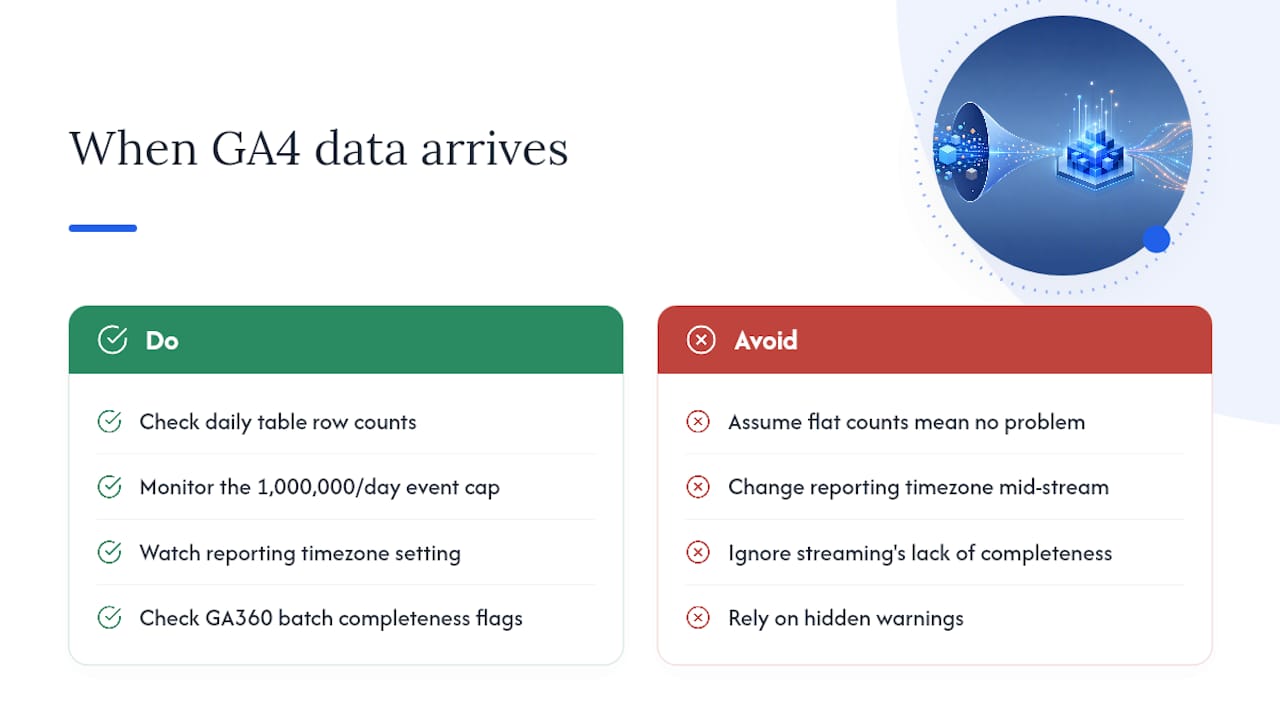
That event cap matters more than most teams realize. High-traffic properties on the standard (free) tier can silently drop events once they exceed the daily threshold, and GA4 won’t necessarily surface a loud warning when it happens. If your export table’s row count looks suspiciously flat during a traffic surge, check whether you’re bumping against the limit before assuming a tracking bug.
Watch your property’s reporting timezone setting too. Changing it mid-stream can shift which events land in which daily table, producing counts that look wrong even though nothing about your tracking changed.
Why Do GA4 BigQuery Exports Fail?
Most export failures trace back to one of a handful of causes, and none of them require a support ticket to fix.
- The service account was deleted or disabled. GA4 creates a dedicated service account to write to your BigQuery project; if someone cleans up “unused” IAM accounts, the export breaks silently.
- Org policy conflicts. Cloud organization-level constraints can block the service account from writing to datasets, even when the link shows as active in Analytics Admin.
- Billing or payment issues. An expired card or suspended billing account on the Cloud project halts the export without necessarily notifying anyone in GA4.
- Sandbox or quota limits. Free-tier Cloud projects have hard caps on storage and query volume that a growing export can quietly hit.
- Timezone changes. Switching the property’s reporting timezone can produce oddly sized or duplicate-looking daily tables.
Pro Tip: Before opening a support case, gather your Cloud project ID, the timestamp of your original link attempt, and the exact name of the GA4 service account. Google’s support team will ask for all three, and having them ready cuts resolution time considerably.
Start troubleshooting by checking IAM roles and confirming the service account still exists, then review your organization’s resource policies, and finally verify billing status and quota usage. If tables stopped appearing on a specific date, check the Analytics Admin BigQuery Links page for error notifications first. When none of that resolves it, escalating to Google support with the diagnostic details above is faster than re-linking blind.
What Query Patterns Actually Control BigQuery Costs?
Cost control in BigQuery comes down to scanning less data, and the nested GA4 schema makes it easy to accidentally scan far more than you need.
- Always filter with
_TABLE_SUFFIXbefore anything else in your WHERE clause. BigQuery uses this to prune partitions before it starts billing you for scanned bytes. - Run a dry run first. Every major SQL client exposes a dry-run option that estimates bytes scanned before you execute, catching runaway queries before they cost money.
- Use
APPROX_COUNT_DISTINCTinstead of exactCOUNT(DISTINCT)when you’re working with high-cardinality fields like user pseudo IDs across large date ranges; it’s dramatically cheaper and close enough for most reporting. - Build materialized views or scheduled queries for recurring reports instead of re-scanning raw event tables every time a dashboard refreshes.
- Test
event_paramsextraction on a single day’s table before scaling a query across months of history. The nested schema’s value-type inconsistencies surface fast on a small sample and save you from rewriting a production query later.
Sequencing deserves its own warning: never rely on event_timestamp alone to determine the order events happened within a session. Late-arriving events and client-side clock drift can scramble the order. Where they exist, batch sequencing fields like batch_event_index give you deterministic ordering that timestamp alone cannot.
| Task | Pattern | Why it matters |
|---|---|---|
| Date filtering | _TABLE_SUFFIX BETWEEN '20260101' AND '20260131' |
Prunes partitions before billing |
| Single param extraction | Correlated subquery on event_params |
Avoids full UNNEST cost for one value |
| Revenue totals | SUM(ecommerce.purchase_revenue) |
Uses the pre-aggregated ecommerce RECORD |
| High-cardinality counts | APPROX_COUNT_DISTINCT(user_pseudo_id) |
Cuts cost on large scans |
| Recurring reports | Scheduled query or materialized view | Avoids repeat full-table scans |
How Does the Export Fit Into Marketing Decisioning?
The real value of exported GA4 data shows up when you join it to ad platform spend and CRM revenue, turning a pile of events into an attribution and pipeline analysis. Most teams build this as a staged ETL: scheduled transfers land the raw export, a transformation layer joins it to campaign and revenue data, and a monitoring step flags when attribution fields arrive late or completeness signals lag. Decision-intelligence tools like Paid Lens’s attribution features sit on top of that joined dataset, ranking which budget or campaign changes matter most instead of leaving analysts to eyeball a spreadsheet of joined tables.

Useful Docs for GA4 BigQuery Export
Bookmark these before you start building: Google’s own BigQuery Export help center, the BigQuery Data Transfer Service GA4 connector docs, and the community schema hub for gotchas Google’s own documentation glosses over.
The Analyst’s Take on GA4 Export
Most teams treat the GA4 BigQuery export as a reporting backup, something to fall back on when the interface’s sampling gets annoying. That undersells it badly. The export is the only place where GA4’s data is actually complete, un-sampled, and queryable against anything else in your warehouse. Treating it as secondary is backwards.
The bigger failure is stopping at “the pipeline works.” Getting tables into BigQuery is the easy 20%. The value shows up when you join those events to ad spend and CRM revenue and start asking which campaign actually drove pipeline, not just clicks. Analysts who stop at dashboards built directly on events_YYYYMMDD are still doing the manual interpretation work that a joined, decision-ready dataset should have eliminated. Get Daily export running first, get your schema queries solid, and then push toward the joins. That’s where the real answers live, not in the raw export itself.
— Shraddha
Sources
- BigQuery Export - Analytics Help
- BigQuery Data Transfer Service — GA4 connector
- Merkle: GA4 x BigQuery — Daily vs Streaming
- GA4 BigQuery schema explained — Native Ore Analytics
FAQ
Do I Need Both Daily and Streaming Export Enabled?
No. Most teams only need Daily export for reporting and attribution; add Streaming only if you have a specific real-time monitoring or alerting use case.
Why Is My BigQuery Event Count Different From the GA4 Interface?
A typical gap of 1 to 5 percent between BigQuery and the GA4 interface is normal and comes from the interface’s probabilistic modeling, not a broken export.
Can I Backfill Historical GA4 Data Into BigQuery?
GA4 does not backfill automatically once you link BigQuery; the export only starts capturing data from the link date forward, so historical gaps require manual export or upload workarounds.
How Much Does the GA4 BigQuery Export Cost?
The export itself is free; you pay standard BigQuery storage and query processing charges, plus streaming ingestion fees if you enable Streaming export, based on data volume.
What’s the Daily Event Limit for GA4 Export?
Standard GA4 properties are capped at 1 million events per day for Daily export; GA360 properties do not have this cap.